When an Upgrade from Mach3 Makes Sense
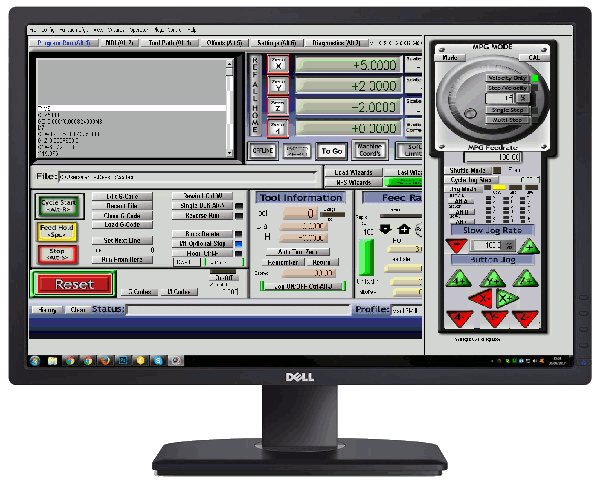
Mach3 still runs a great many mills, routers, and plasma tables, and a machine that cuts accurate parts today does not need new software for its own sake. The usual reasons to upgrade from Mach3 are practical:
- The control PC is dying. Mach3’s parallel port driver only works on 32-bit Windows, up to Windows 7, on a desktop with a real parallel port. Replacing that PC with a current one is no longer simple.
- You need more speed or smoother motion than a parallel port can deliver.
- Support is thin. Mach3 help comes from the user forum, with no phone support from the developer.
- You want features Mach3 lacks, or a control that is still receiving regular releases.
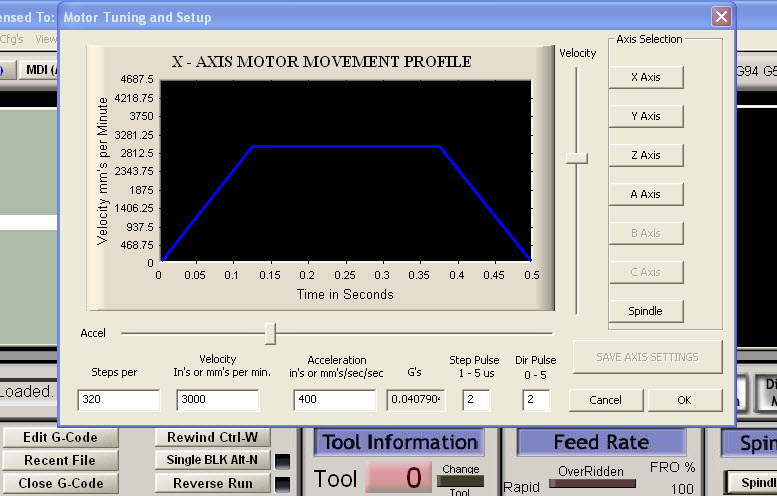
If none of these apply, the cheaper fix is often to tune what you have. Our guides to Mach3 motor tuning and Mach3 troubleshooting and calibration cover the common causes of lost steps and wrong dimensions.
The Options at a Glance
Prices are the developers’ listed license prices as of October 2026 and exclude hardware.
| Stay on Mach3 | Mach4 Hobby | LinuxCNC | UCCNC | |
|---|---|---|---|---|
| License cost | US$175 (already owned) | US$200 (Industrial: US$1,400) | Free, open source | €66 per motion controller |
| Operating system | Windows; parallel port needs 32-bit | Windows | Linux (Debian with a real-time kernel) | Windows XP to 11, 32- and 64-bit |
| Parallel port | Yes, 32-bit Windows only | Only with a US$25 legacy plugin, 32-bit Windows only | Yes | No |
| Motion hardware | Parallel port, or an external controller with a Mach3 plugin | External controller with a Mach4 plugin from its maker | Parallel port, or interface boards such as Mesa | CNCdrive controllers only (UC100, UC300, UC300ETH, UC400ETH, AXBB-E) |
| Scripting | VB-style macros | Lua | HAL configuration, G-code subroutines | Its own macro engine, plus C# / VB / C++ plugins |
| Mach3 macros and screens | Keep working | Must be rewritten | Must be rewritten | Must be rewritten; Mach3 profile can be imported |
| Best for | A machine that works, on a healthy PC | Staying in the Mach family on modern hardware | Maximum control at no license cost, if you are comfortable with Linux | A low-cost Windows control with matched hardware |
One point surprises many owners: Mach4 is a separate product, not a paid update. Its developer states that Mach4 is not an upgrade for Mach3 and that Mach3 drivers and code are not compatible with it. Whichever route you choose, plan on redoing configuration and macros.
Option 1: Keep Mach3, Replace the Parallel Port
The smallest step is not a software change at all. Mach3 can drive an external motion controller through a plugin, and in that mode it is listed as running on Windows 8 and 10 as well as older versions. The controller generates the step pulses, so the PC no longer needs a parallel port or 32-bit Windows.
Your profile, custom macros and screen sets carry on working, which makes this the lowest-risk route when the only real problem is an ageing PC. The limit is that you stay on software with forum-only support.
Option 2: Mach4
Mach4 Hobby is described by its developer as the direct replacement for Mach3. It keeps a familiar workflow for operators, uses Lua for scripting, and is built around external motion controllers. Each controller needs a Mach4 plugin supplied by the hardware manufacturer, so confirm that a plugin exists before buying a board.
- Cost: US$200 for Hobby. Industrial is US$1,400 and adds features such as Macro B programming, tool life management, and screw mapping.
- Parallel port: possible only through a US$25 legacy plugin on 32-bit Windows 7 or XP desktops, which defeats most of the reason to move.
- Migration effort: VB-style Mach3 macros have to be rewritten in Lua, and screens rebuilt.
Choose Mach4 when your operators know Mach3, you want commercial software on Windows, and your budget covers a supported motion controller.
Option 3: LinuxCNC
LinuxCNC is free, open-source control software released under the GPL. It runs on Debian Linux with a real-time kernel and is installed from a ready-made image. It can drive milling machines, lathes, plasma and laser cutters, 3D printers, and robot arms, and it is under active development, with several releases during 2026.
- Cost: no license fee. Budget for an interface board if you want more than a parallel port can give.
- Parallel port: still supported, so an existing breakout board can often be reused.
- Migration effort: the highest of the three. Configuration is done through text files and LinuxCNC’s hardware layer, and it rewards someone willing to learn it.
Choose LinuxCNC when you want full control over the machine’s behaviour, have no Windows dependency, and someone on the team is comfortable with Linux.
Option 4: UCCNC
UCCNC is a Windows control from CNCdrive that works only with the company’s own motion controllers: the UC100, UC300, UC300ETH, UC400ETH, and AXBB-E. Because software and hardware come from one maker, there is no plugin to track down.
- Cost: €66 for a license key, plus the controller. Each key is tied to one controller, not to a PC.
- Windows support: XP through Windows 11, in 32- and 64-bit.
- Speed: step rates up to 400 kHz, depending on the controller.
- Migration effort: moderate. CNCdrive publishes a guide to importing a Mach3 profile, which shortens setup. Macros use UCCNC’s own script engine and need rewriting.
Choose UCCNC when you want an inexpensive, current Windows control and are happy to commit to CNCdrive hardware.
How to Choose
- The machine works and only the PC is failing: keep Mach3 and add an external motion controller.
- You want to stay with what operators know: Mach4.
- You want the lowest software cost and the most flexibility: LinuxCNC.
- You want a simple, low-cost Windows setup with matched hardware: UCCNC.
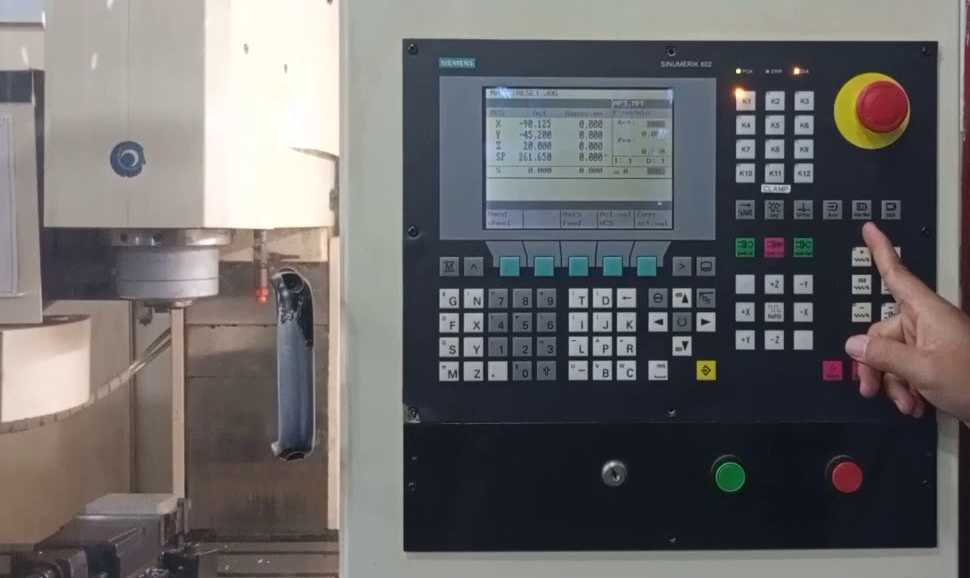
- The machine also has worn drives or an obsolete control cabinet: treat it as a full CNC controller retrofit instead of a software swap.
Before You Switch: A Migration Checklist
- Record the current setup. Save the Mach3 profile file and write down steps per unit, velocity, and acceleration for every axis.
- Document the wiring. List every input and output: limit and home switches, E-stop, spindle control, coolant, probe.
- List every macro and custom button the shop actually uses, and what each one does.
- Check hardware compatibility first. Confirm that your chosen software supports the motion controller, and that the controller suits your drives.
- Keep the old system intact. Do not wipe the Mach3 PC until the new control has run real jobs.
- Commission in stages. Verify E-stop and limits, then axis direction and travel, then homing, then a test cut in soft material.
The axis numbers from step 1 transfer to any of these controls, since they describe the machine and not the software.
FAQ
Is Mach4 a free upgrade from Mach3? No. Mach4 is a separate product with its own license, and Mach3 licenses, drivers, and macros do not carry over.
Can I keep using my parallel port? With LinuxCNC, yes. With Mach4, only through a legacy plugin on 32-bit Windows. UCCNC needs one of CNCdrive’s motion controllers.
Will my Mach3 macros work after the upgrade? Only if you stay on Mach3. Mach4, LinuxCNC, and UCCNC each use a different scripting approach, so macros need rewriting.
Is Mach3 still usable? Yes. It is still sold and still runs many machines. The pressure to move usually comes from PC hardware and Windows versions, not from Mach3 failing to cut parts.
Need Help Planning the Upgrade?
RunTechEngineer helps shops decide whether to tune, upgrade, or retrofit, and carries out the migration, including wiring, configuration, and rewriting macros. See our Mach3 CNC controller services, or contact us with your machine type, current controller, and what is prompting the change.