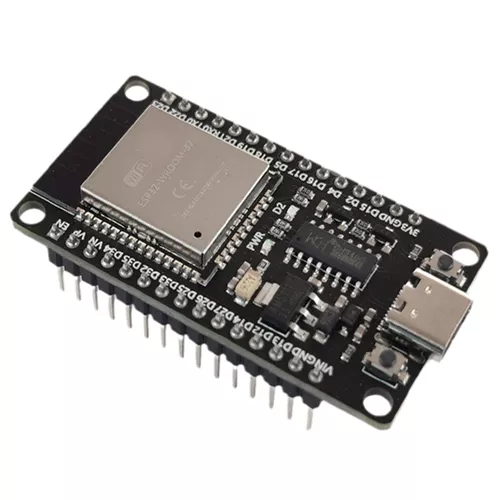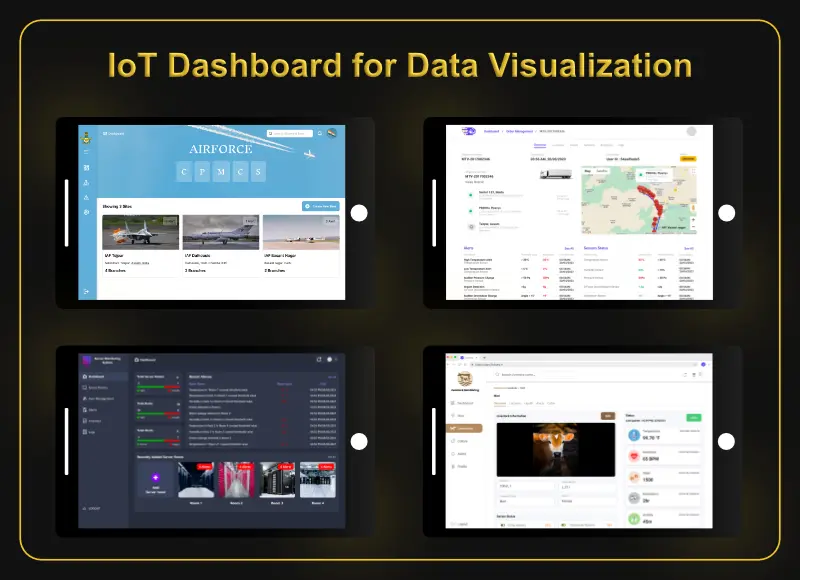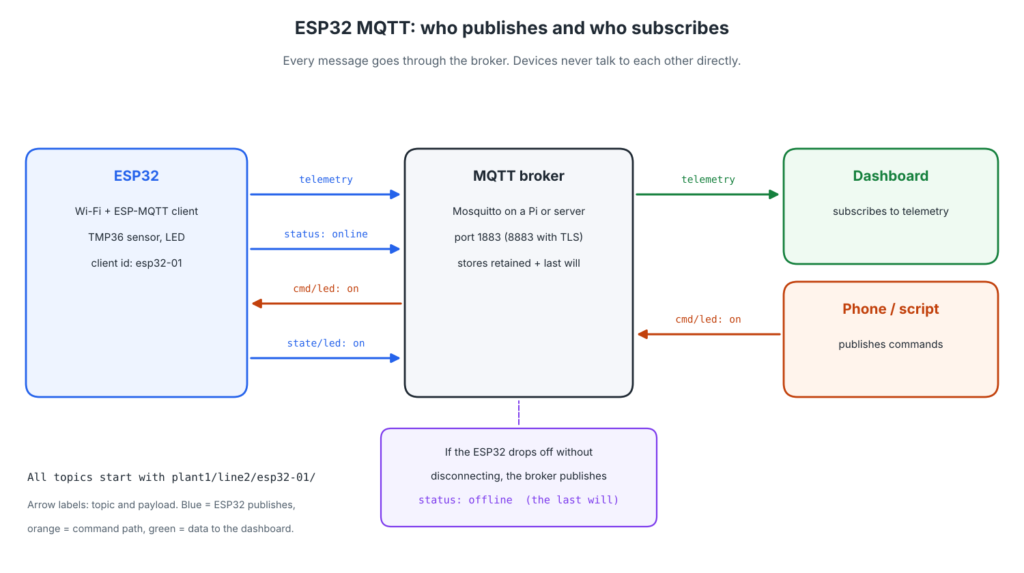
ESP32 MQTT is the most common way to get sensor data off an ESP32 and send commands back to it. The ESP32 keeps one connection open to an MQTT broker, publishes readings to topics, and subscribes to a command topic, so a dashboard, a phone, or another program can read the data and control the device without ever connecting to it directly.
This tutorial builds a complete example: a broker on your own network, an ESP32 that publishes a temperature reading every 10 seconds, switches an LED on command, and reports when it goes offline. It uses ESP-MQTT, the MQTT client that Espressif ships inside the ESP32 Arduino core. If you are still deciding between MQTT and HTTP, read MQTT vs HTTP first.
What You Need
| Item | Notes |
|---|---|
| ESP32 development board | Any ESP32, ESP32-S3, or ESP32-C3 board |
| Arduino IDE 2 with the ESP32 core 3.x | Install “esp32 by Espressif Systems” in the Boards Manager |
| An MQTT broker | Mosquitto on a Raspberry Pi, a PC, or a small server |
| A test client | The mosquitto_sub and mosquitto_pub commands, or a desktop MQTT client |
| Optional: TMP36 temperature sensor | Output to GPIO 34; any sensor works with a small code change |
New to the board itself? See ESP32 vs Arduino for what the ESP32 adds.
Which MQTT Library to Use on the ESP32
For years most ESP32 MQTT tutorials used PubSubClient. Its author now states that the library is no longer maintained and recommends choosing an actively maintained alternative. It also only publishes at QoS 0 and has a 256-byte default message size.
| Library | Status | Notes |
|---|---|---|
| ESP-MQTT (Espressif) | Maintained, part of ESP-IDF and the ESP32 Arduino core | QoS 0, 1, and 2; TLS and WebSocket; automatic reconnect; last will; no extra install |
| arduino-mqtt (256dpi) | Active open source library | Simple Arduino-style API, MQTT 3.1.1, small default buffers |
| PubSubClient | No longer maintained (author’s note, 2026) | Fine for old projects, not recommended for new ones |
This tutorial uses ESP-MQTT. It runs in its own background task, reconnects on its own after Wi-Fi or broker outages, and is the same client used in professional ESP-IDF firmware.
Step 1: Set Up the MQTT Broker
Mosquitto is a free, widely used MQTT broker. Install it on a Raspberry Pi or Linux machine from the package manager. Since version 2.0, Mosquitto only accepts connections from the same machine until you add a listener, and a listener requires authentication by default. A minimal configuration that accepts the ESP32 with a username and password:
listener 1883
password_file /etc/mosquitto/passwd
Create the password file and a user for the ESP32, then restart Mosquitto:
sudo mosquitto_passwd -c /etc/mosquitto/passwd esp32-01
sudo systemctl restart mosquitto
Note the broker’s IP address on your network. Free public test brokers also exist and are handy for a five-minute experiment, but anyone can read what you send to them, so never use them for real equipment.
Step 2: Plan Your MQTT Topics
MQTT topics are text paths separated by slashes. A clear structure from the start saves a lot of renaming later. A common pattern is site / area / device / kind of message:
plant1/line2/esp32-01/telemetryfor sensor readings from the deviceplant1/line2/esp32-01/statusfor online or offlineplant1/line2/esp32-01/cmd/ledfor commands to the deviceplant1/line2/esp32-01/state/ledfor the device confirming what it did
Keep topics lowercase, without spaces or a leading slash. Separate commands from state, so a dashboard shows what the device actually did, not only what was requested. A subscriber can use wildcards: plant1/line2/+/telemetry matches the telemetry of every device on line 2, and plant1/# matches everything in plant 1.
Step 3: The ESP32 MQTT Code
Create a new sketch, paste the code, and change the settings at the top: Wi-Fi name and password, the broker address, and the MQTT username and password you created in step 1.
// ESP32 MQTT example: publish a sensor reading every 10 s and
// switch an LED from an MQTT command.
// Board: any ESP32 with the Arduino ESP32 core 3.x (ESP-IDF 5 inside).
// The MQTT client is ESP-MQTT from Espressif, already part of the core.

#include <WiFi.h>
#include "mqtt_client.h"

// ---- Settings: change these ----
const char* WIFI_SSID = "your-wifi";
const char* WIFI_PASS = "your-wifi-password";

const char* MQTT_URI  = "mqtt://192.168.1.10:1883";  // your broker
const char* MQTT_USER = "esp32-01";
const char* MQTT_PASS = "change-me";

const char* DEVICE_ID    = "esp32-01";
const char* TOPIC_TELEM  = "plant1/line2/esp32-01/telemetry";
const char* TOPIC_STATUS = "plant1/line2/esp32-01/status";
const char* TOPIC_CMD    = "plant1/line2/esp32-01/cmd/led";
const char* TOPIC_STATE  = "plant1/line2/esp32-01/state/led";

const int LED_PIN    = 2;    // onboard LED on many dev boards
const int SENSOR_PIN = 34;   // TMP36 analog temperature sensor
const unsigned long PUBLISH_MS = 10000;

esp_mqtt_client_handle_t mqtt = nullptr;
volatile bool mqttConnected = false;
unsigned long lastPublish = 0;

// TMP36: 10 mV per degree C, 500 mV at 0 degrees C
float readTemperatureC() {
  int mv = analogReadMilliVolts(SENSOR_PIN);
  return (mv - 500) / 10.0f;
}

static bool topicIs(const esp_mqtt_event_handle_t ev, const char* topic) {
  return ev->topic_len == (int)strlen(topic) &&
         strncmp(ev->topic, topic, ev->topic_len) == 0;
}

// Runs in the MQTT client's own task
static void onMqttEvent(void* arg, esp_event_base_t base, int32_t id, void* data) {
  esp_mqtt_event_handle_t ev = (esp_mqtt_event_handle_t)data;

  switch ((esp_mqtt_event_id_t)id) {
    case MQTT_EVENT_CONNECTED:
      mqttConnected = true;
      Serial.println("MQTT connected");
      // Retained "online" replaces the retained "offline" from the last will
      esp_mqtt_client_publish(mqtt, TOPIC_STATUS, "online", 0, 1, 1);
      esp_mqtt_client_subscribe(mqtt, TOPIC_CMD, 1);
      break;

    case MQTT_EVENT_DISCONNECTED:
      mqttConnected = false;
      Serial.println("MQTT disconnected, retrying");
      break;

    case MQTT_EVENT_DATA:
      if (topicIs(ev, TOPIC_CMD)) {
        bool on = (ev->data_len == 2 && strncmp(ev->data, "on", 2) == 0);
        digitalWrite(LED_PIN, on ? HIGH : LOW);
        esp_mqtt_client_publish(mqtt, TOPIC_STATE, on ? "on" : "off", 0, 1, 1);
      }
      break;

    case MQTT_EVENT_ERROR:
      Serial.println("MQTT error");
      break;

    default:
      break;
  }
}

void setup() {
  Serial.begin(115200);
  pinMode(LED_PIN, OUTPUT);

  WiFi.mode(WIFI_STA);
  WiFi.setAutoReconnect(true);
  WiFi.begin(WIFI_SSID, WIFI_PASS);
  Serial.print("Connecting to Wi-Fi");
  while (WiFi.status() != WL_CONNECTED) {
    delay(500);
    Serial.print(".");
  }
  Serial.println();
  Serial.println(WiFi.localIP());

  esp_mqtt_client_config_t cfg = {};
  cfg.broker.address.uri = MQTT_URI;
  cfg.credentials.client_id = DEVICE_ID;
  cfg.credentials.username = MQTT_USER;
  cfg.credentials.authentication.password = MQTT_PASS;
  cfg.session.keepalive = 30;                 // seconds
  cfg.session.last_will.topic = TOPIC_STATUS; // sent by the broker if we vanish
  cfg.session.last_will.msg = "offline";
  cfg.session.last_will.qos = 1;
  cfg.session.last_will.retain = 1;

  mqtt = esp_mqtt_client_init(&cfg);
  esp_mqtt_client_register_event(mqtt, MQTT_EVENT_ANY, onMqttEvent, nullptr);
  esp_mqtt_client_start(mqtt);  // connects and reconnects on its own
}

void loop() {
  if (mqttConnected && millis() - lastPublish >= PUBLISH_MS) {
    lastPublish = millis();
    char payload[64];
    snprintf(payload, sizeof(payload), "{\"temp_c\":%.1f,\"rssi\":%d}",
             readTemperatureC(), (int)WiFi.RSSI());
    esp_mqtt_client_publish(mqtt, TOPIC_TELEM, payload, 0, 0, 0);
  }
  delay(10);
}
How it works:
- Configuration.
esp_mqtt_client_config_tholds the broker address, the client ID, the login, the keepalive interval, and the last will. Each device needs its own client ID; two devices with the same ID keep knocking each other off the broker. - Events. ESP-MQTT runs in its own task and calls
onMqttEventwhen something happens. On connect, the ESP32 publishes “online” and subscribes to its command topic. Subscribing in the connect event means the subscription is restored after every reconnect. - Commands. When a message arrives on the command topic, the code switches the LED and publishes the new state, so the sender can see that the command was carried out.
- Telemetry. The loop publishes a small JSON message every 10 seconds with the temperature and the Wi-Fi signal strength (RSSI), which helps diagnose connection problems in the field.
- Reconnects. Wi-Fi and MQTT both reconnect on their own. Publishing only while
mqttConnectedis true avoids queuing readings while the broker is unreachable.
Step 4: Test It
Upload the sketch and open the Serial Monitor at 115200 baud. Once it prints “MQTT connected”, watch everything the device sends from a computer on the same network:
mosquitto_sub -h 192.168.1.10 -u esp32-01 -P change-me -v -t "plant1/line2/esp32-01/#"

mosquitto_pub -h 192.168.1.10 -u esp32-01 -P change-me -q 1 -t "plant1/line2/esp32-01/cmd/led" -m on
The first command shows the status, telemetry every 10 seconds, and the LED state. The second, run in another window, switches the LED on; send off to switch it off. In practice, give the dashboard and test clients their own usernames instead of sharing the device’s.
Now unplug the ESP32. Within about one and a half keepalive intervals (45 seconds with the 30-second keepalive above), the broker notices the silence and publishes the last will: status offline. Plug it back in, and it returns to online.
QoS and Retained Messages: What to Use Where
MQTT offers three QoS levels and a retained flag; MQTT vs HTTP explains what each one means. In practice, the choice follows the message type:
| Message | QoS | Retained | Why |
|---|---|---|---|
| Telemetry (readings every few seconds) | 0 | No | The next reading replaces a lost one |
| Status (online, offline) | 1 | Yes | A new subscriber should see the current status at once |
| Commands | 1 | No | A retained command would run again every time the device reconnects |
| State (what the device did) | 1 | Yes | Dashboards show the current state as soon as they open |
The last row of the table is the reason commands and state are separate topics. It is a common bug to retain commands: after a power cut, the device reconnects, receives the old retained command, and carries it out again.
Securing the Connection
The example uses plain MQTT on port 1883 with a password, which is acceptable only on a closed local network. Anything that crosses the internet needs TLS:
- Switch the URI to
mqtts://and the broker port to 8883. - Give ESP-MQTT the broker’s CA certificate with
cfg.broker.verification.certificateso the ESP32 checks it is talking to the real broker. - Use a separate username and password, or a client certificate, for every device.
- Restrict each device on the broker to its own topics, so a stolen password cannot control other machines.
Common ESP32 MQTT Problems and Fixes
| Symptom | Likely cause | Fix |
|---|---|---|
| Never connects, no error from the broker | Mosquitto 2 listening only on localhost, wrong IP address, or a firewall | Add a listener line, check the IP, open port 1883 on the broker machine |
| Connection refused, not authorized | Wrong username or password, or the password file was not loaded | Recreate the user with mosquitto_passwd and restart Mosquitto |
| Connects and drops every few seconds | Two devices using the same client ID | Give every device a unique client ID, for example from its MAC address |
| Subscribed, but no messages arrive | Topic typo; topics are case-sensitive | Copy topics from one place in the code; watch with mosquitto_sub using # |
| Large messages missing or cut off | Message bigger than the client buffer (1,024 bytes by default in ESP-MQTT) | Raise cfg.buffer.size, or send smaller messages |
| ESP32 resets or the watchdog fires | Long or blocking work inside the MQTT event handler | Keep the handler short; set a flag and do slow work in loop() |
| Readings stop after Wi-Fi drops | Code waits on Wi-Fi in loop() forever | Let auto-reconnect run and only skip publishing while disconnected |
Taking It Further
- Battery-powered sensors should wake, connect, publish, and go back to deep sleep. Each wake-up costs a Wi-Fi and MQTT connection, so send less often and batch readings; our guide to embedded systems development covers power budgets.
- Dashboards and alerts subscribe to the telemetry topics. See how a machine monitoring system is put together and how to set alarm limits that people actually act on.
- Existing machines can be fitted with ESP32 sensor nodes without changing their controls; see integrating sensors into existing machinery.
Frequently Asked Questions
Which MQTT library is best for the ESP32?
For new projects, ESP-MQTT from Espressif. It is maintained, included in the ESP32 Arduino core and ESP-IDF, and supports all QoS levels, TLS, and automatic reconnects. PubSubClient is no longer maintained.
Does the ESP32 need a broker for MQTT?
Yes. MQTT clients only talk to a broker, never directly to each other. Mosquitto on a Raspberry Pi is a common choice for a local network.
Can the ESP32 use MQTT over TLS?
Yes. ESP-MQTT supports TLS with an mqtts:// URI, usually on port 8883, and checks the broker’s certificate when you give it the CA certificate.
What is a last will in MQTT?
A message the device gives the broker when it connects. If the device disappears without disconnecting properly, the broker publishes that message for it, so other clients know it went offline.
How often should an ESP32 publish data?
As often as the data changes in a useful way. Every few seconds is fine for a mains-powered device; battery sensors usually publish every few minutes or only on change.
Need Help Connecting Your Equipment?
RunTechEngineer develops ESP32 firmware, sensor integration, and MQTT-based monitoring for machines and equipment. See our IoT development services or contact us to discuss your project.